

Website migration is a complex process that — if not well planned — can lead to data loss, a drop in Google rankings, or even temporary site downtime. If you’re considering switching from WordPress to another CMS or from a different system to WordPress, you’re probably looking for greater performance, flexibility, or better alignment with your business goals. And rightly so — a well-chosen CMS can significantly improve your team’s efficiency, enhance the user experience, and open up more growth opportunities for your site.
This article will guide you through the entire process step by step. We’ll show you how to prepare for migration, safely transfer content, media, and site structure, and how to protect your website’s visibility in search results. Regardless of the migration direction — from WordPress or to WordPress — you’ll find specific solutions and tools here to simplify the entire process and help you avoid the most common mistakes.
If you’re aiming for a smooth transition to a new system without downtime or losses, you’re in the right place.
CMS migration – what is it?
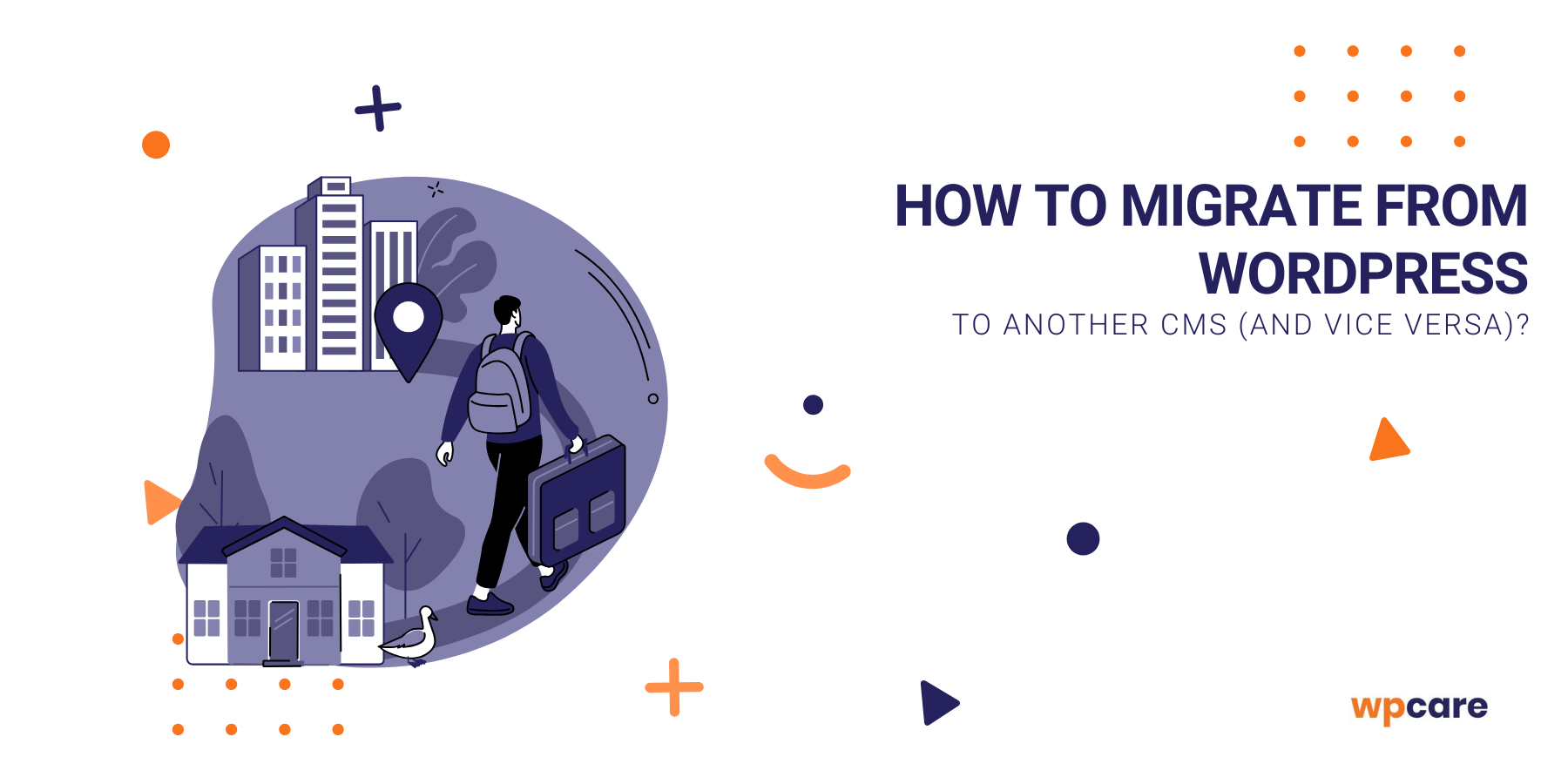
CMS migration is simply the process of moving a website from one content management system (CMS) to another. It could be, for example, switching from WordPress to another platform — or the other way around if you want to return to WordPress.
This change isn’t just about “copying and pasting text”. In practice, it means transferring all key elements: content, images, menu structure, URLs, and sometimes even the design and functionality of the site. The goal is to keep your website running smoothly — just on a new, better-suited platform.
What does site migration actually mean?
Site migration is a broader process that may include many elements, not just changing the CMS. Sometimes it also involves switching hosting providers, restructuring the site, or moving an online store.
The most important thing in a migration is that users don’t notice any “background mess” and Google doesn’t “lose” your site. That’s why it’s worth approaching this process with a clear plan — step by step, without rushing.
Why do site owners decide to migrate?
There are many reasons — often stemming from everyday issues you may face:
- The site is too slow or frequently breaks.
- You’re missing features that another system could provide out of the box.
- You want more control over the design and content without needing a developer.
- Your current site is outdated and hard to scale.
- You’re changing business strategy — launching a store or expanding a brand.
- The costs of maintaining your current CMS are too high or not justified.
When is it worth migrating to WordPress?
WordPress is the most popular CMS in the world for a reason. While it’s not ideal for every project, it can be a great choice — especially if you value flexibility, easy content editing, and a wide range of extensions.
When should you seriously consider migrating to WordPress?
Business needs
Migrating to WordPress makes sense if:
- Want to manage the site yourself — WordPress is user-friendly and its editor doesn’t require coding knowledge.
- You need a site that grows with you — WordPress is suitable for small blogs, large portals, and online stores alike.
- You want to quickly implement new features — thanks to thousands of plugins and themes, you can easily add functionalities without coding from scratch.
- Your current CMS limits your marketing — WordPress integrates well with SEO tools, analytics, newsletters, and ads.
- You want to reduce development costs — maintaining a WordPress site is often cheaper than niche or closed systems.
Technical aspects
From a technical point of view, WordPress is a good choice if:
- Your current CMS lacks support or updates — WordPress is continuously developed and regularly updated, ensuring security and stability.
- Site is slow or not responsive — WordPress makes it easy to implement optimized, mobile-friendly themes.
- Your team needs a simpler admin panel — WordPress has an intuitive interface that shortens onboarding time.
- You plan frequent updates or expansions — the theme and plugin system lets you modify the site without rebuilding it from scratch.
- You need easy integration with external tools — like CRM, e-commerce, payments, forms, or marketing automation.
Preparing for migration
Website migration isn’t just a technical operation — it’s a process worth planning carefully. With the right preparation, you can avoid common pitfalls like data loss, SEO drops, or site structure chaos.
Here are three key steps to start with:
Audit of the current site
Before moving anything to a new system, evaluate what you currently have. An audit helps you decide what’s worth migrating, improving, or leaving behind.
Things to consider at this stage:
- Site structure – all subpages, menus, categories, tags.
- Content types – blog posts, static pages, products, galleries, forms.
- Plugins, modules, integrations – what works well, what’s outdated, what needs replacement.
- Traffic and SEO – which pages get the most visits? Which rank well on Google?
- Language versions – is the site multilingual or localized?
The more thorough the audit, the smoother the migration process will be — with fewer surprises or gaps.
Create a backup
Before making any changes, create a full backup of your site. Whether you’re migrating on your own or hiring someone, a backup is a must for safety.
Make sure to back up:
- the entire database (e.g., posts, users, settings),
- all files (media, themes, scripts, plugins),
- and — if possible — server or hosting configuration.
In case of issues, you’ll be able to restore your site to its pre-migration state.
Not sure how to create a backup? Check out our article:

Effective backup of your WordPress – how to do it?
Planning information architecture
Migration is a great opportunity to organize your site’s structure. If your current CMS has “grown wild” — with too many categories, messy menus, or duplicated content — now’s the time to fix it.
Focus on:
- Content hierarchy – what information is key and should be easy to access?
- Menus and navigation – can users quickly find what they’re looking for?
- URLs – are they readable, logical, and SEO-friendly?
- Tags and categories – do they organize content or create clutter?
Migrating from WordPress to another CMS
If WordPress no longer meets your expectations — e.g. it limits growth, is too complex, or doesn’t suit your project’s nature — switching to another CMS may be a good solution. To ensure the process goes smoothly, it’s worth approaching it step by step.
Exporting content from WordPress
The first step is extracting data from WordPress. Depending on what you want to migrate and your target system, you have several options:
- Built-in WordPress Export – available in the admin panel (Tools > Export), allows exporting posts, pages, comments, menus, and more in XML format.
- Plugins like WP All Export – provide advanced filtering and export in formats like CSV or JSON.
- Database export – if you need a full data dump (e.g. for advanced developer-led migration).
Note: exporting is just the beginning. Usually, the data will need further processing to be compatible with the new CMS!
Importing to the chosen CMS
After exporting, the data must be imported into the new system. This depends on the platform you’re moving to (e.g., Joomla, Drupal).
Import options may include:
- Built-in import tools – available in systems like Drupal or Joomla.
- External migration tools – such as CMS2CMS or platform-specific scripts.
- Manual import via API or database – usually requires developer involvement.
Important: make sure WordPress fields (e.g. title, content, publish date) map correctly to the new CMS structure.
Manual migration of media, tags, categories, comments
Not all site elements can be transferred automatically. Often, manual complementary migration is needed, especially when:
- The new CMS handles tags and categories differently.
- Comments aren’t natively supported (or used external tools like Disqus).
- Media structure (images, PDFs) differs — requiring re-uploads and corrected paths in content.
SEO migration
CMS migration is a big risk for your site’s Google visibility — but it can be avoided. Key points:
- Preserve URLs – if possible, use the same structure.
- 301 Redirects – if URLs change, correctly redirect old addresses to new ones.
- Meta tags and titles – ensure they’re carried over (or recreated) in the new CMS.
- Sitemap and robots.txt – update these after migration.
- SEO tools – configure Google Search Console and check indexing post-migration.
Proper SEO preparation ensures your rankings won’t drop — and might even improve over time.
Template and feature adjustments
A WordPress theme won’t work in another CMS — so make sure to design a new layout compatible with the chosen platform. This is often a great chance to refresh your design.
Remember, functionalities (e.g. forms, blog, cart, search) may work differently and require reconfiguration or new plugins.
How to do it?
- Define key features your site must have.
- Check how they’re implemented in the new CMS.
- Plan potential changes in user experience (UX/UI).
Migrating to WordPress from another CMS
If you’re using a less flexible CMS or your current site is hard to manage, moving to WordPress could be a good step. The process — though it may seem complex — can be smooth if approached methodically.
Exporting data from your current CMS
The first step is extracting content from your current system. Depending on your current CMS, you may have access to:
- Export in XML, CSV, or JSON formats,
- Modules/extensions for data export,
- Direct access to the database,
- Or, for closed systems, manual data retrieval.
The key is to obtain: posts, pages, categories, tags, images, comments (if any), and SEO data — titles, descriptions, URLs.
Tools for importing data into WordPress
WordPress offers many import methods. Useful tools include:
- WordPress Importer – basic plugin for importing from XML files.
- WP All Import – advanced tool supporting CSV, XML, or JSON, fully customizable.
- CMS2CMS – commercial service automating migration from various systems to WordPress.
- Manual import via API or database – for special cases requiring technical skills.
Note: start with a clean WordPress installation — preferably on a staging environment.
Content mapping
Each CMS has its own data structure, so it’s crucial to map content properly to WordPress elements:
- Articles → posts
- Static pages → pages
- Categories → blog categories
- Tags → tags in WordPress
- Special content types (e.g. products, galleries) → custom post types or plugins
Accurate mapping is essential — poorly done mapping can result in misplaced content and editing issues.
Maintaining SEO continuity
To avoid losing search traffic, you must maintain SEO continuity:
- 301 redirects from old URLs to new ones — set up manually or using plugins like Redirection.
- Preserve metadata – titles, descriptions, and headings. If you used SEO plugins, transfer or reconfigure this data.
- Update sitemap and robots.txt — e.g. using SEO plugins like Rank Math or Yoast.
- Monitor indexing — track how Google “sees” your new site in Search Console.
Well-executed migration shouldn’t hurt your rankings — and could boost them long-term.
Theme and plugin setup
Finally, ensure your site’s appearance and functionality. WordPress gives you lots of freedom:
- Theme – use a ready-made template (e.g., Astra, Kadence, GeneratePress) or commission a custom one.
- Plugins – add features like forms, galleries, caching, SEO, backups, e-commerce (e.g. WooCommerce).
- Template customization – if migrating from a unique layout, recreate it using the block editor or builders like Elementor or Bricks.
What happens after migration?
Migration isn’t the end of the process. After moving your site to a new CMS, you must ensure everything works as it should — both technically and for users. This final but crucial stage often determines the overall success.
What should you check and configure after the migration?
- Test the site functionality
Start by thoroughly reviewing your site:- Are all pages displaying correctly?
- Do menus, links, and buttons work?
- Do contact forms or shopping carts (if applicable) work properly?
- Are all images and files present?
- Is the content properly formatted?
- Check SEO and redirects
After migration, it’s essential to verify that your Google visibility hasn’t dropped:- Confirm 301 redirects — do old URLs lead to correct new pages?
- Ensure meta titles and descriptions were preserved or correctly set.
- Update the sitemap and submit it to Google Search Console.
- Analyze 404 errors — and fix them as soon as possible.
- Monitor traffic in analytics tools for the first few weeks.
- Configure marketing and analytics tools
Make sure all external integrations are working:- Google Analytics 4
- Google Search Console
- Meta Pixel (Facebook), Google Ads conversions
- Mailing and CRM systems (e.g. MailerLite, HubSpot, GetResponse)
- Web push notifications, chat tools, e-commerce integrations
- Back up the new version
Now that the site is ready, secure it again. Make a full backup of the working version — ideally automatic and regular (e.g. daily or weekly). - Communicate the change (if necessary)
If your users might notice changes — like a new design, different menu, or restructured store — let them know:- With a short message on the website or blog
- Via email (newsletter)
- On social media
Summary
Migrating your website to another CMS is a big change — but also a chance to organize your content, improve performance, and better match tools to your real needs. Whether you’re moving from or to WordPress, thorough preparation and a thoughtful approach are key.
If you pay attention to the details — from content structure to SEO — your new system will become a solid foundation for your site’s future growth. And the migration itself won’t be a hassle, but a strategic step forward.
with comprehensive WordPress site management
If you want to be sure your WordPress site runs smoothly, securely, and without downtime — leave it to the experts.
We’ll handle updates, optimization, backups, and all the technical details so you can focus on your business.